Step 2. Initialize RDII Analyst
1. Initialize RDII Analyst by selecting RDII Analysis from the InfoSWMM or InfoSWMM SA Applications menu:

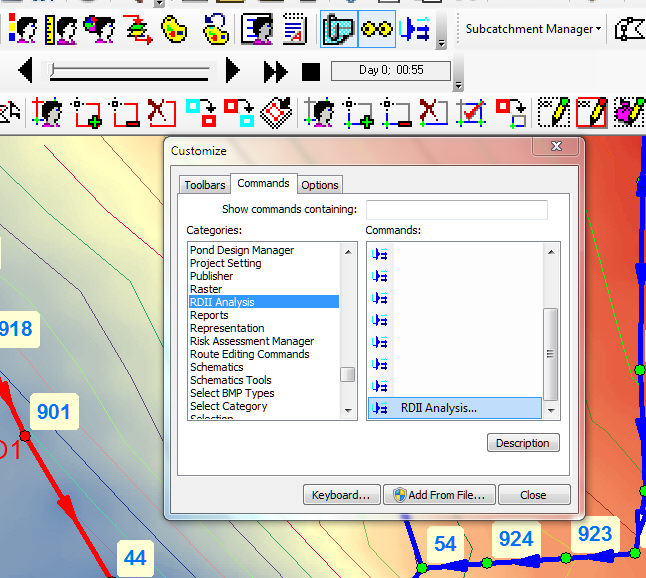
2. You can also make a custom Icon for RDII Analyst using the Customize Menu command of Arc Map (InfoSWMM Only) and then use that Icon to open RDII Analyst.
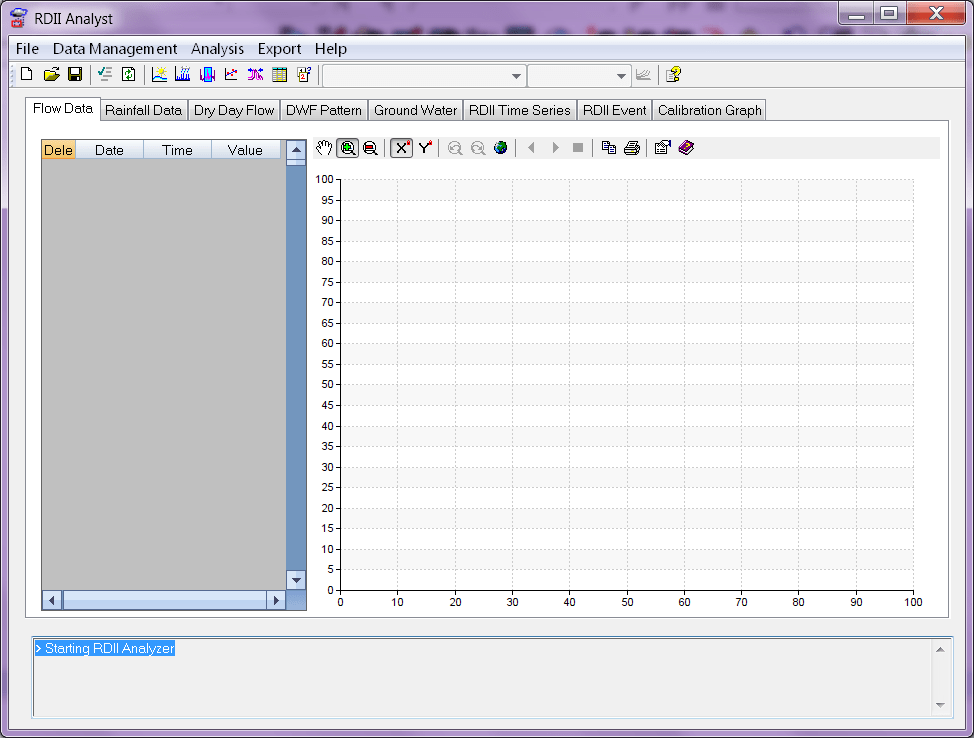
3. The RDII Analyst dialog box appears:
Privileged and Confidential Communication: This electronic mail communication and any documents included hereto may contain confidential and privileged material for the sole use of the intended recipient(s) named above. If you are not the intended recipient (or authorized to receive for the recipient) of this message, any review, use, distribution or disclosure by you or others is strictly prohibited. Please contact the sender by reply email and delete and/or destroy the accompanying message.