How to Import the SWMM 5 Report File as a Layer in #InfoSWMM
The purpose of this blog of note is to show how one may extract information from the SWMM 5 or #InfoSWMM RPT file and import the Excel File as a feature in InfoSWMM. This blog has an example Excel file to illustrate the linkage. The steps are:
Step 1: Copy the whole row from Conduit Summary from the InfoSWMM Browser
Step 2: Add the two columns length and slope from the Link Summary Table and the InfoSWMM Browser
Step 3: You need a few calculations based on the table values from SWMM 5 to estimate the CFL time steps in the .
Step 4: Add the Excel Spreadsheet as a layer in InfoSWMM – the Named Range should be added to insure valid numbers and not Nulls after the join
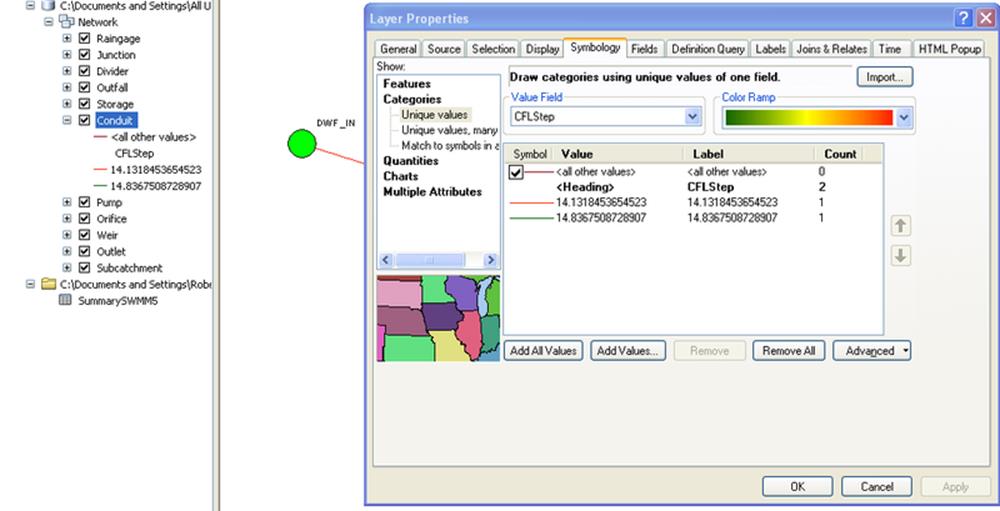
Step 5: You can now plot the CFL Time Step for the Links using the Layer Properties command in Arc Map
Step 1: Copy the whole row from Conduit Summary

Step 2: Add the two columns length and slope from the Link Summary Table

Step 3: You need a few calculations based on the table values from SWMM 5 to estimate the CFL time steps.
The CFL Step = Length / (Full Velocity + (Gravity * Full Depth)^0.5)
Full Velocity = Full Flow / Full Area
You also need to create a Name A Range for you data so that the data does not show up as Nulls

Step 4: Add the Excel Spreadsheet as a layer in InfoSWMM – the Named Range should be added

Step 4: Join the Excel Table to the InfoSWMM Conduit Feature Layer

Step 5: You can now plot the CFL Time Step for the Links using the Layer Properties command in Arc Map