2018
#INFOSWMM, InfoSWMM, InfoSWMM_SA, Rossman, SWMM5
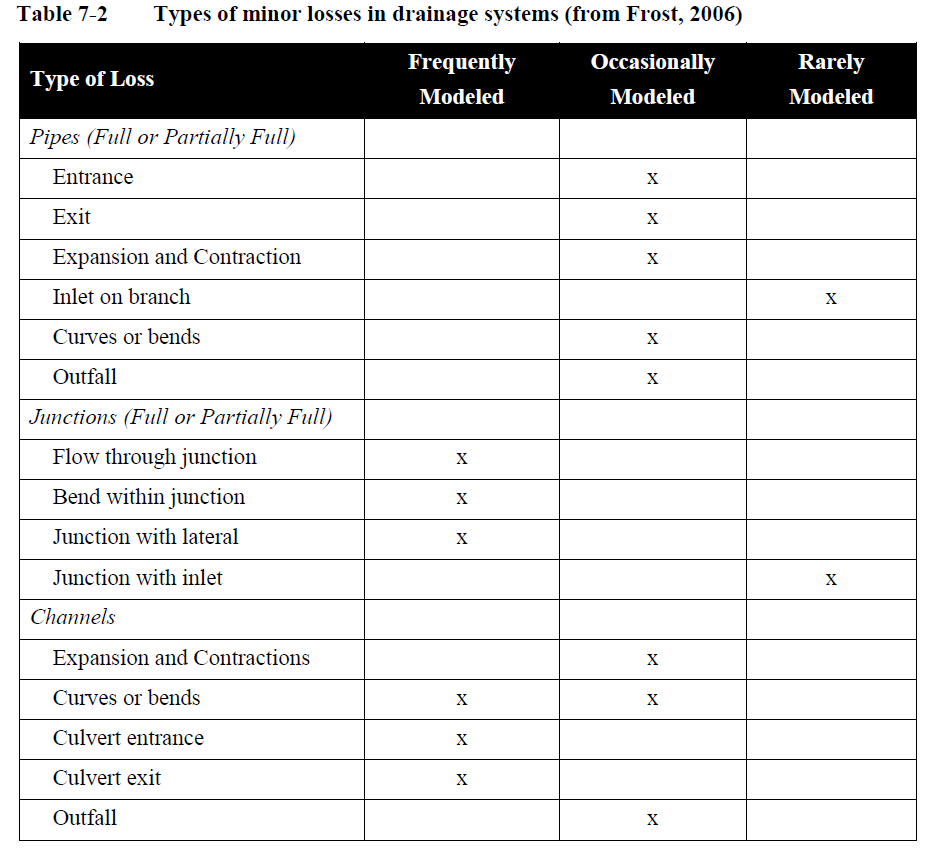
Minor Losses in a Link for SWMM5 and InfoSWMM
Minor Losses in a Link for SWMM5 and InfoSWMM

#INFOSWMM, InfoSWMM, InfoSWMM_SA, Rossman, SWMM5
Transects in SWMM5 and InfoSWMM
Transects in SWMM5 and InfoSWMM
Transects refer to the geometric data that describe how bottom elevation varies with horizontal distance over the cross section of a natural channel or irregular-shaped conduit. The figure below displays an example of a transect for a natural channel.

Each transect must be given a … Read the rest
#INFOSWMM, InfoSWMM, InfoSWMM_SA, Rossman, SWMM5
Custom Conduit Shape Curve in SWMM5 and InfoSWMM
Custom Conduit Shape Curve in SWMM5 and InfoSWMM
This is a new curve type that is used to construct custom shape for closed conduits that cannot be reasonably defined using any of the existing shape types supported by InfoSWMM. The curve represents depth to full depth ratio on the Y-axis, … Read the rest
InfoSWMM, InfoSWMM_SA, Rossman, SWMM5
Weirs in SWMM5 and InfoSWMM
Weirs in SWMM5 and InfoSWMM
Weirs, like orifices, are used to model outlet and diversion structures in a drainage system. Weirs are typically located in a manhole, along the side of a channel, or within a storage unit. They are internally represented in InfoSWMM and InfoSWMM SA as a link … Read the rest
#INFOSEWER, #INFOSWMM, InfoSewer, InfoSWMM
InfoSWMM and InfoSewer from Innovyze both are Extensions inside of Arc Map (versions 10 to 10.6 and counting)
InfoSWMM and InfoSewer from Innovyze both are Extensions inside of Arc Map (versions 10 to 10.6 and counting). As Innovyze Arc GIS products they (and InfoWater) share a common menu structure: Project, Edit, View, Exchange, Scenario, Tools, Utilities, Applications and Help. InfoSewer only has one Application, InfoSewer Load Allocator, whereas … Read the rest
#INFOSWMM, InfoSWMM, InfoSWMM_SA
Utilities Menu commands in InfoSWMM
Utilities Menu
Descriptions of All Utilities Menu commands in InfoSWMM.
- Locate - The Locate command is used to find a node/pipe/element by ID within an InfoSWMM project. This function is also available from the Model Explorer - Attribute Tab toolbar
 .
. - Change ID - The Change ID command allows the
#INFOSWMM, InfoSWMM, InfoSWMM_SA
Tools Menu commands in InfoSWMM
Tools Menu
All the commands for the Tools Menu commands in InfoSWMM.
Use the different options provided here to run your model (Run Manager and Batch Simulation Manager) and analyze your results through the different options such as the Customized Report, Query report, Output Report Manager. Modify … Read the rest
#INFOSWMM, InfoSWMM, InfoSWMM_SA
Scenario Menu in InfoSWMM
Scenario Menu
Descriptions of All Scenario Menu commands in InfoSWMM.
The Scenario Manger is where InfoSWMM allows the user to create, delete and modify scenarios. The Scenario Manager is what allows the user to create "what if" situations throughout a sewage collection system.
The Dataset Manager is a "quick view" … Read the rest
#INFOSWMM, InfoSWMM, InfoSWMM_SA
… Read the rest
Exchange Menu in InfoSWMM
Exchange Menu
Descriptions of All Exchange Menu commands in InfoSWMM.
InfoSWMM supports the following data exchange functionality. The Exchange Menu contains the following commands that provide various data exchange functionality. Please refer to the data exchange section for details on how to use the functionality listed under this menu.
| Button |
#INFOSWMM, InfoSWMM, InfoSWMM_SA
View Menu in InfoSWMM
View Menu
Descriptions of All View Menu commands in InfoSWMM.
The InfoSWMM Map Display feature may be used to annotate your map. To learn more about color coding and/or changing symbol sizes click here.
Choose the Reset Display icon  to clear your Map.
Refresh Map resets your or others … Read the rest
#INFOSWMM, InfoSWMM, InfoSWMM_SA
Edit Menu commands in InfoSWMM
Edit Menu
Descriptions of All Edit Menu commands in InfoSWMM.
The Database Editor (DB) allows the user to open any InfoSWMM database and edit user input fields (except ID). To access the DBEditor, from the Edit menu, select DB Tables to see the Open Table dialog box below.
The Edit … Read the rest
#INFOSWMM, InfoSWMM, InfoSWMM_SA
Project Menu commands in InfoSWMM
Project Menu
InfoSWMM and InfoSewer from Innovyze both are Extensions inside of Arc Map (versions 10 to 10.6 and counting). As Innovyze Arc GIS products they (and InfoWater) share a common menu structure: Project, Edit, View, Exchange, Scenario, Tools, Utilities, Applications and Help. InfoSewer only has one Application, InfoSewer Load … Read the rest
#INFOSEWER, InfoSewer
Utilities Menu in InfoSewer
Utilities Menu in InfoSewer
Descriptions of All Utilities Menu commands in InfoSewer.
- Locate - The Locate command is used to find a node/pipe/element by ID within an InfoSewer project. This function is also available from the Model Explorer - Attribute Tab toolbar
 . See: Locate
 - Change ID - The Change
#INFOSEWER, InfoSewer
InfoSewer Project Menu
InfoSWMM and InfoSewer from Innovyze both are Extensions inside of Arc Map (versions 10 to 10.6 and counting). As Innovyze Arc GIS products they (and InfoWater) share a common menu structure: Project, Edit, View, Exchange, Scenario, Tools, Utilities, Applications and Help. InfoSewer only has one Application, InfoSewer Load Allocator, whereas … Read the rest
#INFOSEWER, InfoSewer
Exchange Menu in InfoSewer
Exchange Menu in InfoSewer
Descriptions of All Exchange Menu commands in InfoSewer.
InfoSewer supports the following data exchange functionality.
- Import/Export Managers - Background mapping, external models or InfoSewer data elements.
- Import/Export Generate Files - Import generate files in to InfoSewer or export InfoSewer in to generate file.
- Append Nodes -
#INFOSEWER, InfoSewer
Tools Menu in InfoSewer
Tools Menu in InfoSewer
Descriptions of All Tools Menu commands in InfoSewer.
Use the different options provided here to run your model (Run Manager and Batch Simulation Manager) and analyze your results through the different options such as the Customized Report, Query report, Output Report Manager. Modify … Read the rest
#INFOSEWER, InfoSewer
Edit Menu in InfoSewer
Edit Menu in InfoSewer
Descriptions of All Edit Menu commands in InfoSewer.
The Database Editor (DB) allows the user to open any InfoSewer database and edit user input fields (except ID). To access the DBEditor, from the Edit menu, select DB Tables to see the Open Table dialog box below.… Read the rest
#INFOSEWER, InfoSewer
View Menu in InfoSewer
View Menu
Descriptions of All View Menu commands in InfoSewer.
The InfoSewer Map Display feature may be used to annotate your map. To learn more about color coding and/or changing symbol sizes click here.
Choose the Reset Display icon  to clear your Map.
Refresh Map resets your or others … Read the rest
#INFOSWMM, InfoSWMM, InfoSWMM_SA, RTK
Tutorial – Step 9: Export Results to InfoSWMM and InfoSWMM SA RDII Analyst
Step 9: Export Results to InfoSWMMand InfoSWMM SA
In this section, you will export the hourly DWF patterns created for weekdays and weekend, the groundwater inflow time series and the RTK parameters to InfoSWMM and InfoSWMM SA. The exported data would be assigned to the nodes that contribute flow to … Read the rest